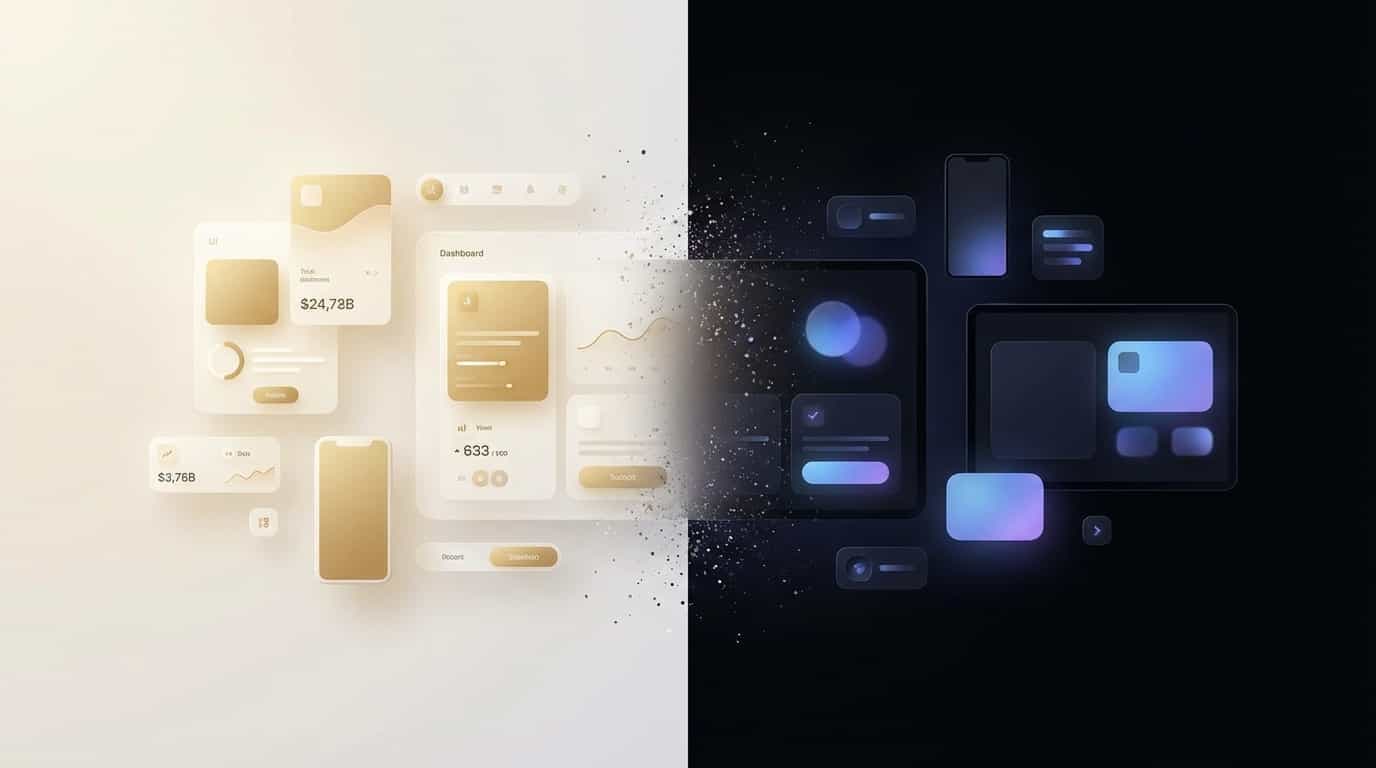
Designing for Dark Mode: A Complete Guide
Dark mode has evolved from a nice-to-have feature to an expected standard. But doing it well requires more than inverting colors. Here's everything we've learned about creating dark interfaces that are beautiful, accessible, and functional.
Why dark mode matters
The practical benefits
- Reduced eye strain in low-light environments
- Battery savings on OLED screens (up to 60% for pure black)
- Accessibility for users with light sensitivity
- User preference — many simply prefer it
The business case
Our analytics consistently show:
- 65-80% of users enable dark mode when available
- Longer session times in low-light hours
- Higher engagement scores for apps with thoughtful dark mode
The common mistakes
Before we dive into best practices, let's address what not to do:
❌ Mistake 1: Just inverting colors
/* Don't do this */
filter: invert(1);
This creates harsh contrasts and inverts images, creating a jarring experience.
❌ Mistake 2: Pure black backgrounds
/* Avoid this */
background: #000000;
Pure black (#000000) creates too much contrast with text and can cause "halation" — a visual effect where white text appears to bleed into black backgrounds.
❌ Mistake 3: Ignoring color saturation
Colors that work in light mode become overwhelming in dark mode. You need to reduce saturation for dark themes.
Building a dark mode color system
Background layers
Instead of pure black, use graduated dark grays:
:root {
  /* Dark mode backgrounds */
  --bg-void: #050508; /* Deepest layer */
  --bg-deep: #0a0a0f; /* Primary background */
  --bg-surface: #12121a; /* Elevated surfaces */
  --bg-elevated: #1a1a24; /* Cards, modals */
  --bg-hover: #242430; /* Hover states */
}
This creates depth through subtle gradation rather than harsh lines.
Text colors
Avoid pure white text on dark backgrounds:
:root {
  --text-primary: #f4f4f6; /* 96% white */
  --text-secondary: #a1a1aa; /* 60% white */
  --text-tertiary: #71717a; /* 40% white */
}
This slight reduction from pure white significantly improves readability.
Accent colors
Reduce saturation for dark mode accents:
/* Light mode */
--accent-blue: hsl(210, 100%, 50%);

/* Dark mode — reduce saturation */
--accent-blue-dark: hsl(210, 80%, 60%);
Implementation strategies
Strategy 1: CSS custom properties
The most flexible approach:
:root {
  --bg-primary: #ffffff;
  --text-primary: #1a1a1a;
}

[data-theme="dark"] {
  --bg-primary: #0a0a0f;
  --text-primary: #f4f4f6;
}

body {
  background: var(--bg-primary);
  color: var(--text-primary);
}
Strategy 2: Tailwind CSS
If you're using Tailwind:
// tailwind.config.js
module.exports = {
  darkMode: "class", // or 'media'
  // ...
};<div class="bg-white dark:bg-gray-900">
<p class="text-gray-900 dark:text-gray-100">Content</p>
</div>Strategy 3: Respect system preferences
// Check system preference
const prefersDark = window.matchMedia("(prefers-color-scheme: dark)").matches;

// Listen for changes
window.matchMedia("(prefers-color-scheme: dark)").addEventListener("change", e => {
  setTheme(e.matches ? "dark" : "light");
});
Handling images and media
Images
Options for handling images in dark mode:
- Reduce brightness/contrast
[data-theme="dark"] img {
  filter: brightness(0.9) contrast(1.1);
}- Provide alternate versions
<picture>
  <source srcset="hero-dark.jpg" media="(prefers-color-scheme: dark)" />
  <img src="hero-light.jpg" alt="Hero image" />
</picture>- Use transparent backgrounds for illustrations and logos
Shadows
Shadows don't work the same in dark mode:
/* Light mode */
.card {
  box-shadow: 0 4px 20px rgba(0, 0, 0, 0.1);
}

/* Dark mode — use glow effects instead */
[data-theme="dark"] .card {
  box-shadow: 0 0 30px rgba(0, 128, 255, 0.1);
  border: 1px solid rgba(255, 255, 255, 0.05);
}
Accessibility considerations
Contrast ratios
WCAG 2.1 requirements still apply:
| Element | Minimum ratio |
|---|---|
| Normal text | 4.5:1 |
| Large text (18px+) | 3:1 |
| UI components | 3:1 |
Use tools like WebAIM Contrast Checker to verify.
Don't rely on color alone
Information conveyed by color should also be conveyed by:
- Icons or symbols
- Text labels
- Patterns or textures
Motion and animations
Some users are more sensitive to motion in dark mode. Respect preferences:
@media (prefers-reduced-motion: reduce) {
  * {
    animation-duration: 0.01ms !important;
    transition-duration: 0.01ms !important;
  }
}
Testing your dark mode
Manual testing checklist
- All text is readable (check contrast ratios)
- Images don't look washed out or too dark
- Borders and dividers are visible
- Focus states are clear
- Hover states are noticeable
- Error/success states are distinguishable
- No elements "disappear" in dark mode
Tools we use
- Chrome DevTools — Rendering tab for color scheme emulation
- Polypane — Side-by-side light/dark comparison
- aXe — Accessibility auditing
- Stark — Figma plugin for contrast checking
Key takeaways
- Never just invert — build a proper dark color system
- Avoid pure black — use dark grays for depth
- Reduce saturation — colors need adjustment for dark mode
- Test thoroughly — accessibility requirements still apply
- Respect preferences — support system-level settings
Building a product that needs dark mode done right? We can help design and implement a color system that works beautifully in any lighting.